Signing in and roles
You sign in to HEAT once, and the same account opens the dashboard and, for administrators, the Control Centre. Your role decides which pages and which sessions you see.
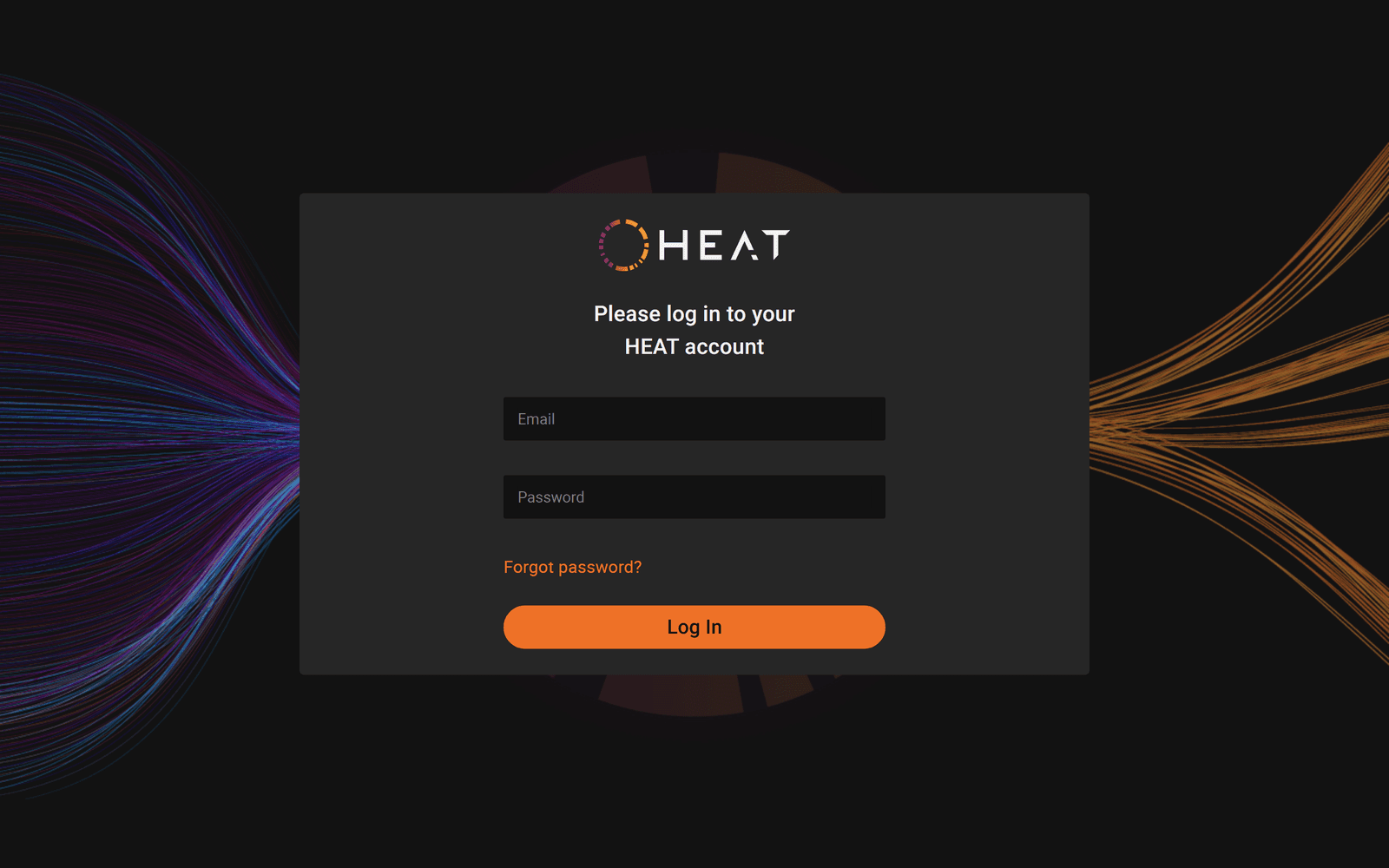
The sign-in page is hosted by the Control Centre, the operator portal for a HEAT installation, at /login. The dashboard sends you there whenever you open it without a valid sign-in, and brings you back to the page you asked for once you are in.
The sign-in page
The page reads “Please log in to your HEAT account” and has two fields, “Email” and “Password”. Enter the sign-in name your administrator gave you in the first field. Both fields are required. If either is wrong the page shows “Your username or password may be incorrect. Please check your details and try again.”
Your administrator creates your account and gives you your first password. HEAT does not send account emails on its own, so if you have not received a password, ask the person who invited you.
Your first sign-in
The first time you sign in, HEAT takes you through a short setup before you reach any results.
Change your password
Your first password is temporary. HEAT shows “To secure your account, please set a new password” and asks for the new password twice, in “Enter new password” and “Confirm new password”. The new password must be at least 10 characters long and include both uppercase and lowercase letters. Press “Continue”.
Accept the privacy policy
The dashboard opens the “Policy statement” page at /privacy-policy. Read it, then press “Accept and continue”. Pressing “Decline and log out” records your decision and signs you out. You cannot use the dashboard until the policy is accepted.
Fill in your details
The “Welcome to HEAT” page at /welcome asks you to “take the time to answer the following questions” under the heading “Your details”. The fields are “First name” and “Last name”. Your environment may also ask for “Select your gender” and “Date of birth”, which is entered as DD/MM/YYYY. Required fields show “Required” when left empty. Press “Continue”.
If the form cannot be saved, the page shows “Profile could not be set up” and asks you to check the fields.
Finish
The /success page confirms “Your account setup is now complete”. Press “Go to overview” to enter the dashboard. Your environment may replace this button with one that opens a different page.
You see the privacy policy and the details form once. If the policy text is updated later, the dashboard asks you to accept the new version before you continue.
Roles
Every account has one of four roles. The role is set when the account is created and can be changed by an administrator. The Users page in the dashboard shows a short description of each role when you hover over the role column.
| Role | What the dashboard says | Sessions you can open | Extra pages |
|---|---|---|---|
| Trainee | ”can only view personal data” | Sessions you took part in | None |
| Instructor | ”can view all participant data” | Every session in the environment | Overview and Reports |
| Administrator | ”adds users, deactivates users, and changes roles” | Every session in the environment | Overview, Reports, Users and system views |
| Developer | Not shown on the Users page | Every session in the environment | Overview, Reports, Users and system views |
The Developer role is for people who build data flows. It sees the same pages as an Administrator, and its navigation also lists the system dashboards HEAT publishes about itself. A Developer account cannot be assigned from the dashboard Users page, which offers Admin, Instructor and Trainee only.
A session appears in a Trainee’s list only when the session names them as a participant. Instructors, Administrators and Developers see every session, whether or not they took part. Finding your sessions explains the other reasons a session may be missing.
Where you land
After sign-in, the dashboard chooses your first page from your role and your environment.
| Role | First page |
|---|---|
| Trainee | Overview if your environment has it enabled, otherwise Sessions |
| Instructor, Administrator | Overview if enabled, otherwise Sessions |
| Developer | Overview if enabled, otherwise the first system view, otherwise Sessions |
If you have not yet accepted the privacy policy or completed your details, the dashboard sends you to those pages first, as described above.
Resetting a forgotten password
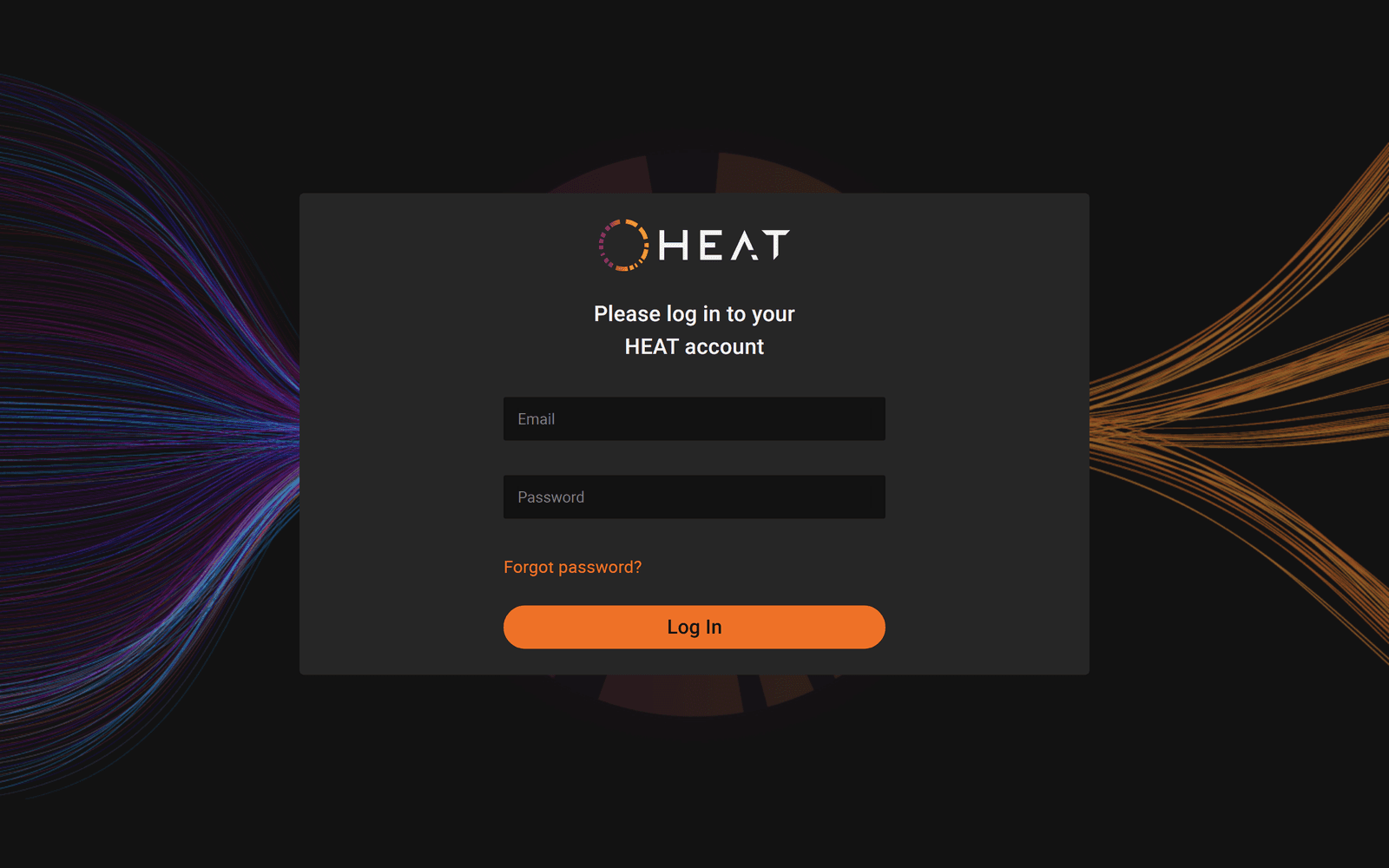
The Control Centre hosts a password reset flow at /forgot-password-email, on the same address as the sign-in page. Press “Forgot password?” under the sign-in fields to open it.
Enter your email
The page reads “Enter your email address below to receive a verification code”. Enter the email address on your account and press “Send Code”. “Return to Login” takes you back without sending anything.
Enter the code
The page reads “Verify your email to continue”. Type the code from the email into “Verification code” and press “Verify Code”. If the code has expired or did not arrive, press “Send New Code”.
Set the new password
The page reads “Please set a new password to access your account”. Enter the password twice and press “Update Password”. The same password rule applies as on first sign-in.
Done
The page confirms “Password updated successfully”. Return to the sign-in page and sign in with the new password.
The reset flow depends on your HEAT environment being able to send email. Many HEAT installations run on isolated networks where no email leaves the site. If no code arrives, ask your administrator to set a new password for you in the Control Centre instead.
Changing your password later
Open Settings in the navigation menu. Under “Change your password”, press “Change Password”. This opens the Control Centre’s change password page, which asks for your current password and the new one. When you are done, return to the dashboard.
Related
- The HEAT dashboard
- Finding your sessions
- Reading a session dashboard
- Identity in the Control Centre, for administrators who create accounts