Administering HEAT
An administrator keeps a deployed HEAT environment healthy and ready for training. You watch the cluster, create the projects and templates that trainers use, and manage the people who sign in.
This section is for that reader. It describes the operator portal screen by screen, then covers deployment and the operations side of bulk analytics.
Who administers HEAT
HEAT has four sign-in roles. They are held in HEAT Auth, HEAT’s built-in identity service.
| Role | What they do in HEAT | Operator portal access |
|---|---|---|
| Administrator | Looks after the environment, users and configuration | Every section |
| Instructor | Runs and reviews training in the HEAT dashboard | None |
| Trainee | Takes part in training and reads their own results | None |
| Developer | Builds data flows and integrations | Every section, with a few Administrator-only controls |
Most of this section assumes you sign in as an Administrator. Where a page is open to another role, the page says so.
The operator portal
The operator portal is the HEAT Control Centre, served at /admin. You sign in at /login and land on the Monitoring overview at /admin/monitoring. It is where you watch the cluster, manage projects, sessions, templates and users, and troubleshoot processing.
An older console, the original Cluster Manager, is still served at /main. It is deprecated and kept only for the few screens the current console has not replaced, such as creating ingests. Prefer /admin for all operator work. See The legacy console for what remains there.
The Control Centre is separate from the HEAT dashboard, where instructors and trainees read results. See The Control Centre for what the portal is and is not.
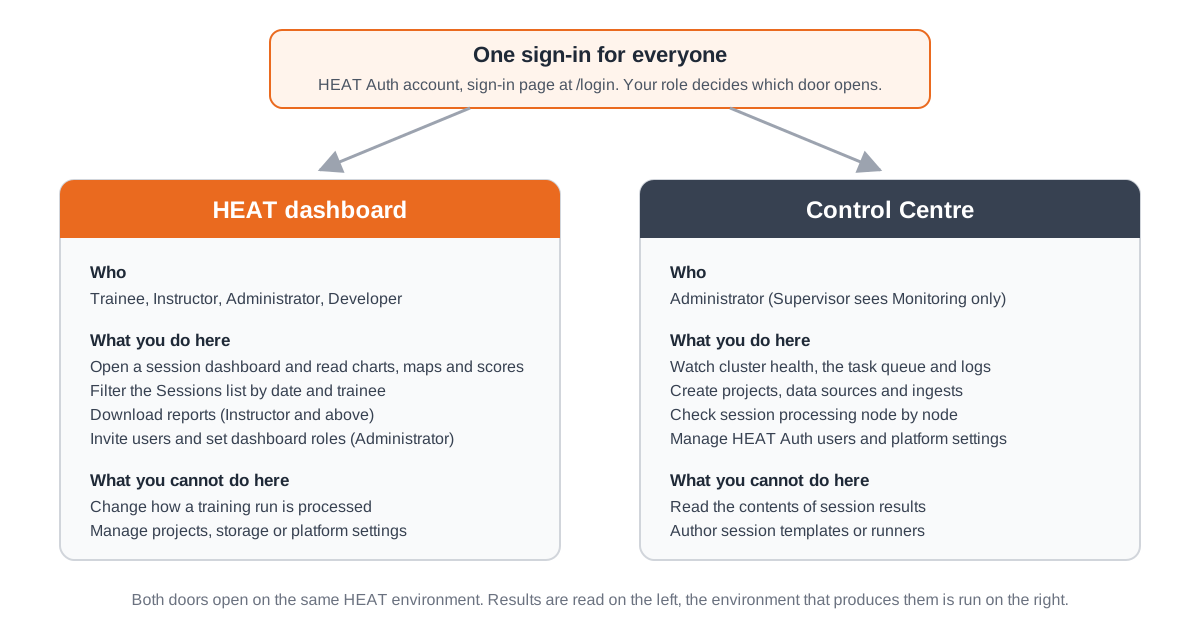
Map of this section
| Area | Pages | What you do there |
|---|---|---|
| Control Centre | Overview and the console screen by screen: Monitoring, Platform Advisor, Cluster, Sessions, Projects, Templates, Configuration, Identity and more | Operate the environment day to day |
| Deployment | Introduction, Environment requirements, On-premises, Enabling SSL | Stand up and secure an environment |
| Bulk analytics operations | Bulk analytics operations | Deploy and monitor the bulk analytics database |
| HEAT Capture | Overview, Getting started, the Capture application and the capture modules | Install, configure and operate the Windows application that records simulator and sensor data and streams it to HEAT |
First day checklist
A new environment is empty until an administrator gives it structure. Work through these steps in order.
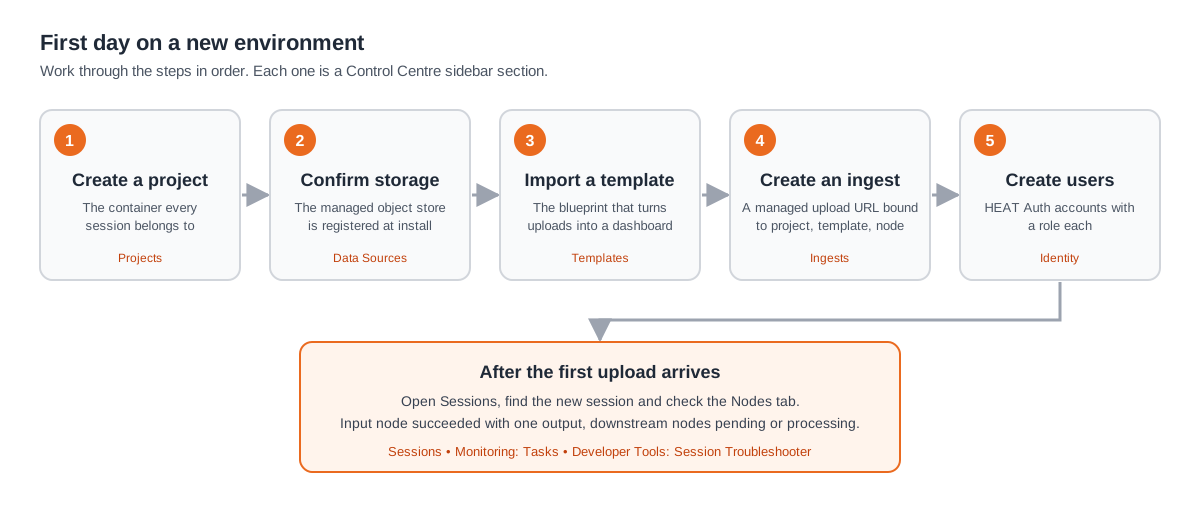
- Create a project. A Project is the container every session belongs to. See Projects.
- Register or confirm a data source. A Data source is where session data is stored. Most environments use the managed object store created at install time. See Data Sources.
- Import a session template. A Session template is the blueprint that turns uploaded data into a dashboard. See Templates.
- Create an ingest. An Ingest is a managed upload URL bound to a project, a template and an input node. See Ingests.
- Invite users. Create accounts in HEAT Auth, or invite them by email from the dashboard when email is configured. See Identity.
After the first upload arrives, open Sessions to confirm the session was created and its nodes are processing.