Install HEAT Capture
Before you start
| Requirement | Detail |
|---|---|
| Operating system | Windows, x64. The installer refuses other architectures. |
| Runtime | Microsoft Edge WebView2 Runtime . Not bundled, not checked by the installer. |
| Rights | Administrator, for a per-machine install into Program Files. |
| Disk | At least 5 GiB free on the capture drive, 20 GiB or more recommended. |
| Network | HTTP access from the workstation to your HEAT platform instance. |
| Deployment package | The VRAI-supplied .hcz containing your approved settings and modules. A Module Library token is only needed for self-service registry access. |
The .NET runtime is published inside the application, so no separate runtime install is needed.
Install the WebView2 Runtime
before HEAT Capture. The installer does not detect its absence, and the application starts with an
empty window if it is missing. The log records Not installed for WebView2 in that case.
Install
-
Obtain
HEAT-Capture-Setup.exefor the release you are deploying. Installers built from the release branch are code-signed by VRAI; check the digital signature before running it. -
Run the installer as an administrator and accept the licence.
-
Choose the install location, or accept the default
C:\Program Files\VRAI\HEAT Capture. -
Choose whether to install the optional component Latest trained inference model. Leave it selected unless VRAI has told you otherwise.
-
On the Module Library Authentication page, leave the field empty when VRAI supplied an
.hczconfiguration package. Most customer deployments do not need a Module Library token.Enter a token only for a deployment that must browse and install modules from the VRAI curated registry. Supplying it writes a module registry configuration. An existing configuration is never overwritten.
-
Complete the installer. It creates a Start Menu entry named HEAT Capture; the desktop shortcut is optional and off by default.
-
Launch HEAT Capture, open Settings, select Import Config, and choose the
.hczpackage supplied for the deployment. Import replaces all current settings and modules, then requires an application restart. Do not import a package while a session is active.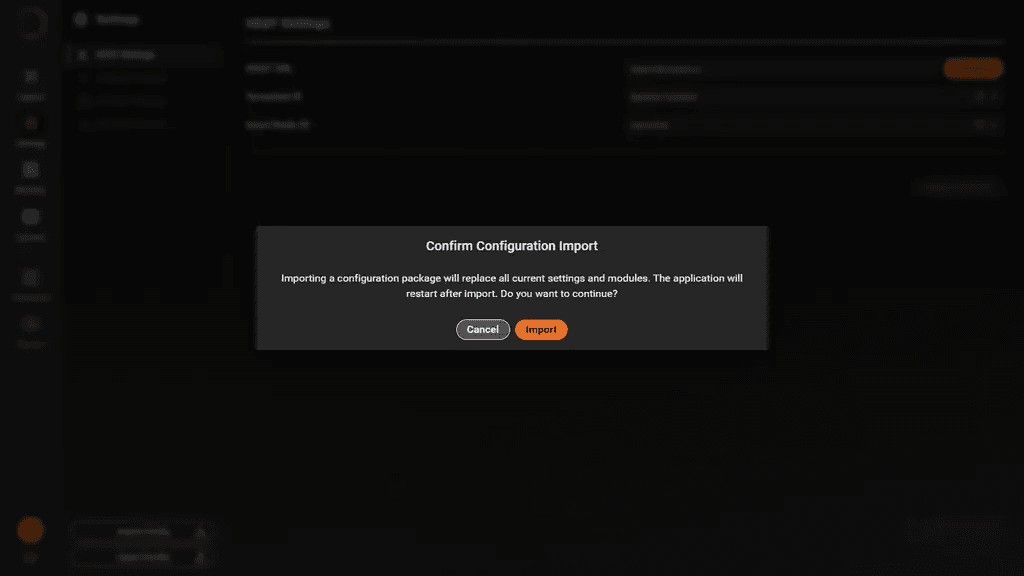
Confirmation shown before importing a VRAI-supplied HEAT Configuration Zip.
-
After the restart, sign in to your HEAT platform instance in the application window.
Set the platform URL
The VRAI-supplied .hcz normally sets the platform URL for the deployment. If no package was
supplied, or the package does not contain the target URL, replace the shipped VRAI development URL
before the first capture. Use the application settings or UserConfig.json; see
Configure.
Changing the platform URL while the application is running signs the current user out and invalidates cached templates, by design.
At the documented product ref, the installer does not select and install modules from licence keys.
That is planned behaviour. Current customer deployments import the VRAI-supplied .hcz manually.
Verify the install
-
Confirm the application window loads its interface. An empty window means the WebView2 Runtime is missing.
-
Confirm the embedded API answers on the workstation:
Invoke-RestMethod http://localhost:5005/api/healthstatus ------ ok5005is the port the desktop application ships with. If you changed it, use your value. -
Confirm the version the application reports:
Invoke-RestMethod http://localhost:5005/api/ui/version -
Confirm capture is possible on this machine:
Invoke-RestMethod http://localhost:5005/api/storage/capacitycanStartCapturemust betrue. When it isfalse, the drive holding the capture store is below the 5 GiB minimum.
Where files live
| Content | Location |
|---|---|
| Application | C:\Program Files\VRAI\HEAT Capture |
| Operator settings | C:\ProgramData\VRAI\HEATCapture\UserConfig.json |
| Module registry configuration | C:\ProgramData\VRAI\HEATCapture\heat.modules.json |
| Installed modules | Modules under the install directory, or C:\ProgramData\VRAI\HEATCapture\Modules |
| Capture store | C:\ProgramData\VRAI\HEATCapture\HARDStore |
| Logs | C:\ProgramData\VRAI\HEATCapture\Logs\log.txt |
Upgrade
Install the newer version over the existing one. Operator settings, the module registry configuration and the capture store all live outside the install directory and are preserved. Close the application first; the Capture installer does not detect a running instance.
Uninstall
Uninstall from Apps & features. The application and its file association are removed.
Left behind, deliberately, so a reinstall keeps its data:
C:\ProgramData\VRAI\HEATCapture, including operator settings, the module registry configuration, installed modules, the capture store and logs.
Delete that directory by hand if you are decommissioning the machine. Check first that no session directories are still waiting to be delivered, as described in Operate.
The module registry configuration in ProgramData contains your VRAI Module Library token in
clear text. Treat that file as a secret and remove it when decommissioning a workstation.